Because Nvoicepay values your financial security, we require all users to log in with an email and password. You can follow the same process to either set up a new password or update an existing password.
Please note: You can only set up or reset passwords for email addresses that receive our remittance alerts.
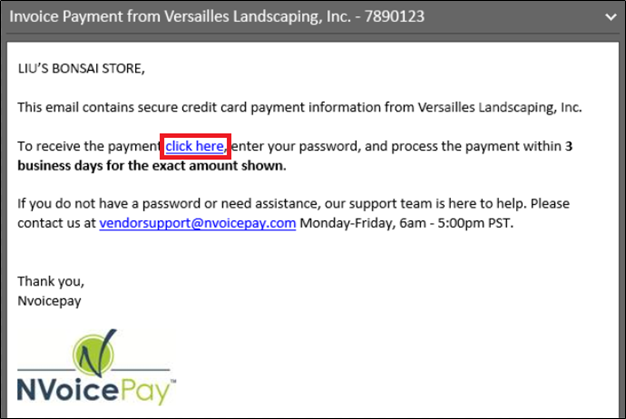
1. Open the remittance alert email from Nvoicepay and click the "click here" link. You will be directed to the Payment Command Center login page.
2. Click "Setup or reset your password". You do not need to enter your login information at this time.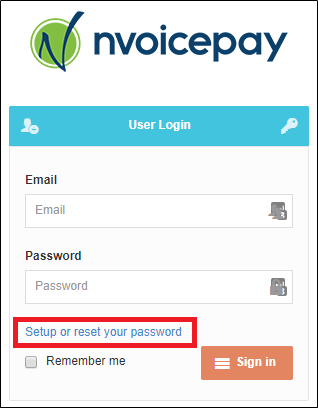
3. Type your email in the text box, then click the "Reset My Password" button. An email will be sent to your inbox.
Note: You can only set up or reset passwords for email addresses that receive our remittance alerts.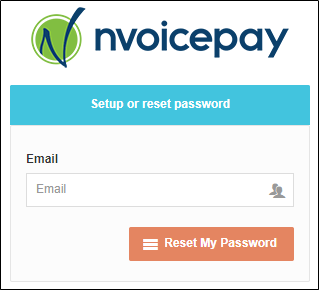
4. In the new email titled "Reset Password", click the "Reset Password" button. You will be redirected to a new Payment Command Center page.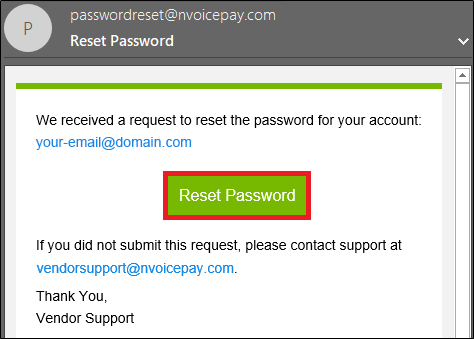
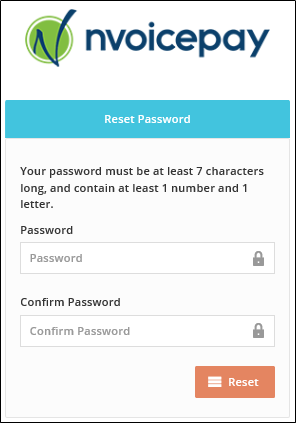
6. Enter a password and re-enter the password to confirm. Then click the 'Reset' button.
Note: Your password must be at least 7 characters long, and contain at least 1 number and 1 letter.
7. You will automatically be logged in to the Payment Command Center.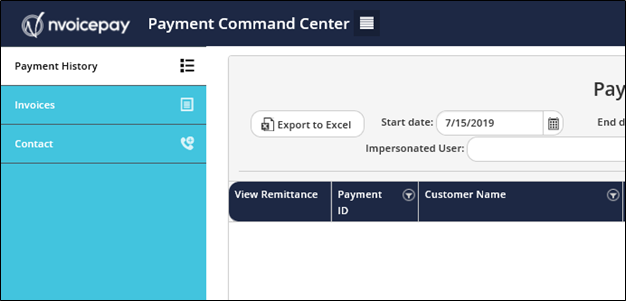
If you have any questions or need further payment assistance, please reach out to our Vendor Support team at 877-626-6332 or vendorsupport@nvoicepay.com.
Comments
0 comments
Please sign in to leave a comment.