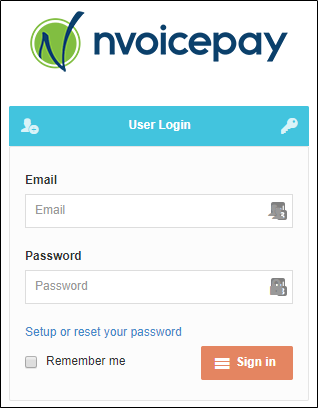
1. Log into the Payment Command Center. (If you need a password or have never logged in, see this article.)
2. Once you have logged into the Payment Command Center, click on the Payment History tab.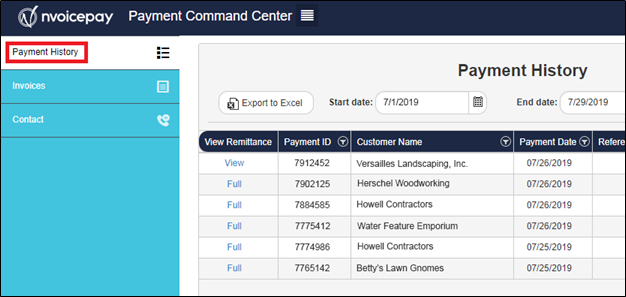
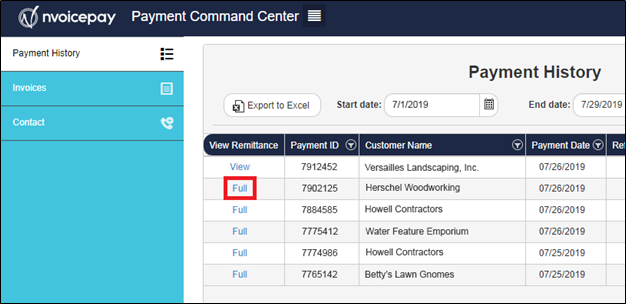
3. Click on the "Full" link in the View Remittance column for your desired payment.
Note: If the View Remittance column displays a "View" link, the payment is a print check. Click on the link to view a voided copy.
4. The payment details will appear on your screen. If you are receiving Mastercard payments, the full card information will be below the total amount on the remittance. You can then input the information in your credit card terminal or merchant processer of your choice.
Note: To download a copy of the remittance to your computer, click on the "Direct Download" button at the top of the screen.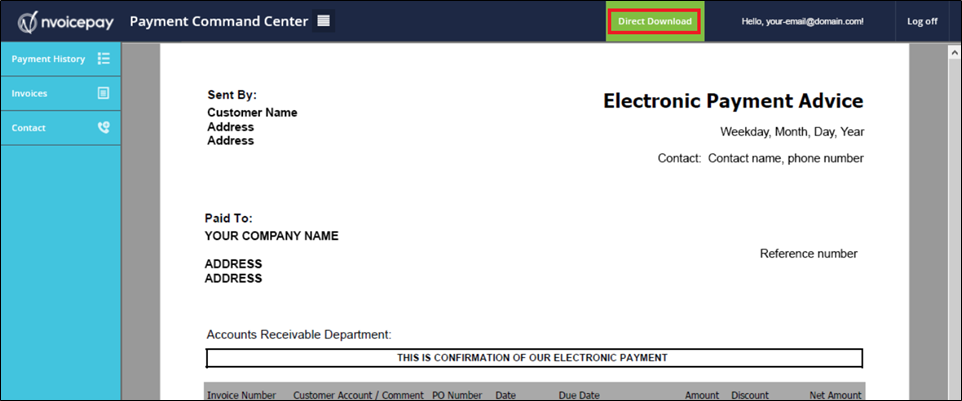
If you are having trouble accessing the Payment Command Center or viewing electronic payment advice, please contact our Vendor Support team at vendorsupport@nvoicepay.com or call 877-626-6332.
Comments
0 comments
Please sign in to leave a comment.